10 CLI Tools That Replace Your GUI in 2026: The Terminal-Native Stack That Earned Its Spot
Originally published on Medium. Read here free — no account needed.
GUIs lock you into someone else’s UX. These 10 CLI tools earned a permanent spot in my shell.
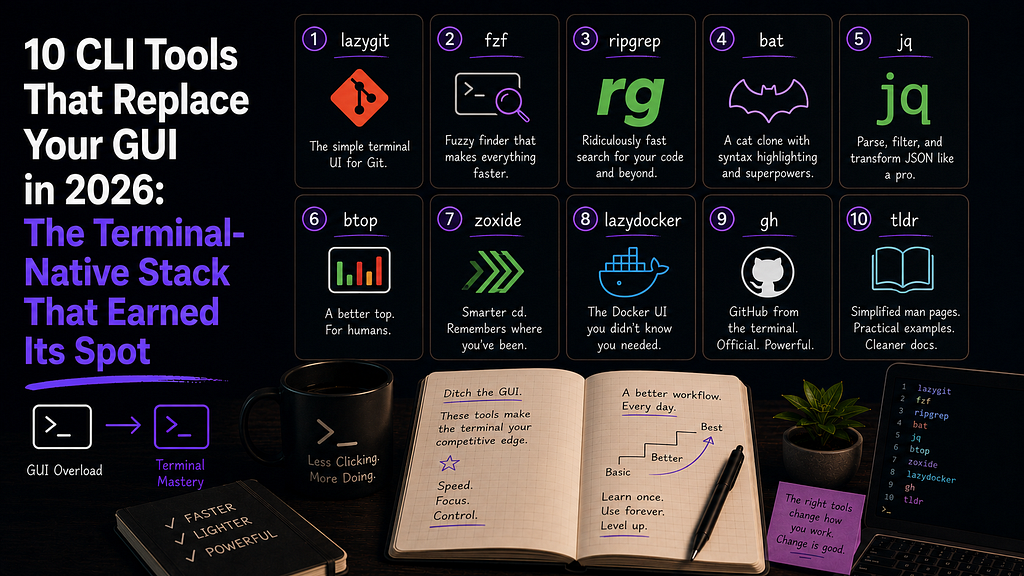
Every GUI is a series of decisions someone else made for you. Click here. Wait for this panel to load. Hope the button still exists after the next update. Then your favorite tool gets acquired, redesigned, or paywalled, and the muscle memory you spent two years building is suddenly worthless.
Terminal-native tools don’t do that. They compose, they script, they survive every IDE wave, and they work the same on your laptop, your server, and someone else’s machine over SSH.
I wrote about My Full 2026 Dev Stack a couple months back. This piece drills one layer deeper, into the individual CLI tools that quietly replaced GUI apps I used to depend on. Each one earned its spot by being faster, more composable, or just less in my way than the graphical thing it replaced.
Here are the 10 that stuck. 🛠️
1. lazygit: Replaces Your Git GUI
Description: A terminal UI for git that makes complex operations actually understandable. Think GitKraken or GitHub Desktop, but it runs in your terminal and never asks you to log in.
Key Features:
- Visual staging: stage individual hunks or single lines with one keystroke
- Interactive rebase that’s hard to mess up
- Side-by-side diff viewing built in
- Branch management with visual context (graph, ahead/behind, upstream)
- Vim-style keybindings throughout
Why You Should Use It: If you’ve ever opened GitHub Desktop or SourceTree just to stage specific lines because the CLI felt too risky, lazygit is the upgrade. The diff viewer alone is worth the install. Seeing changes side-by-side beats squinting at git diff output, and it's one of the main features that help the transition from graphical IDEs like VSCode to PDEs like Neovim.
The real unlock is interactive rebase. I used to avoid git rebase -i because the editor-based workflow felt like defusing a bomb. lazygit makes it visual so I can see every commit, drag-and-drop the order with keystrokes, and squash without fear. I haven't opened a graphical git client in over a year.
Install: brew install lazygit
2. fzf: Replaces Your File Picker (and Then Some)
Description: A general-purpose fuzzy finder. Pipe anything into it, type a few letters, and get a fast, interactive picker for any list: files, branches, processes, shell history, you name it.
Key Features:
- Works on any line-based input (ls | fzf, git branch | fzf, etc.)
- Built-in keybindings for shell history search (Ctrl+R)
- Integrates with Vim, tmux, and most modern shells
- Multi-select mode for batch operations
- Preview windows so you see file contents before picking
Why You Should Use It: fzf quietly became one the most important tools on my system. VS Code’s command palette? That’s a fuzzy finder. Spotlight? Fuzzy finder. Raycast? Fuzzy finder. The terminal version works on anything you can list.
Once Ctrl+R is wired up, you stop memorizing long commands. You type three letters from a command you ran last week and there it is. Pair it with ripgrep (next item) and cd $(find . -type d | fzf) replaces every "navigate to folder" workflow you've ever built.
Install: brew install fzf && $(brew --prefix)/opt/fzf/install
3. ripgrep (rg): Replaces “Find in Files” Forever
Description: A blazing-fast recursive grep replacement written in Rust. It’s 10–100x faster than grep, ignores files in .gitignore by default, and knows about file types.
Key Features:
- Respects .gitignore automatically, so no node_modules noise
- Smart case sensitivity (lowercase = case-insensitive, mixed = case-sensitive)
- File type filtering: rg "TODO" --type ts
- JSON output for scripting
- Pretty-printed terminal output with line numbers
Why You Should Use It: Every IDE has a “find in files” panel. ripgrep is faster than all of them, and it doesn’t make you wait for an indexer to warm up. On a 200k-line monorepo, rg "useAuth" returns before I finish blinking.
The .gitignore respect is the real killer feature. I used to dread searching codebases with dependency folders because every match was buried under 4,000 hits in node_modules. With rg, those are gone by default. The signal-to-noise ratio is what makes it stick.
Install: brew install ripgrep
4. bat: Replaces “Open in Editor Just to Peek”
Description: A cat clone with syntax highlighting, git integration, and line numbers. It's what cat should have been all along.
Key Features:
- Syntax highlighting for dozens of languages out of the box
- Shows git modifications inline (added, modified, deleted markers)
- Line numbers by default
- Paging via less for long files
- Works as a drop-in cat replacement (alias cat=bat)
Why You Should Use It: Half the time I used to open a file in Neovim was just to glance at the contents. Now I bat config.yaml and I'm done. Syntax highlighting makes it scannable, and the inline git markers tell me what changed at a glance.
It also pairs beautifully with fzf as a preview pane: fzf --preview 'bat --color=always {}' turns your file picker into a mini file browser. Once you have this combo, the GUI file explorer feels redundant.
Install: brew install bat
5. jq: Replaces Online JSON Formatters and Postman’s Viewer
Description: A command-line JSON processor. Parse, filter, map, and transform JSON with a small, expressive query language.
Key Features:
- Pretty-print any JSON: curl ... | jq
- Query nested structures: jq '.users[].email'
- Reshape output, filter arrays, merge objects
- Works as a streaming filter in pipelines
- Universal: every modern API speaks JSON, and jq speaks every JSON
Why You Should Use It: Stop pasting API responses into jsonformatter.org. Stop opening Postman just to inspect a response body. curl api.example.com/users | jq gives you formatted, colored JSON in your terminal in 80 milliseconds.
The query language is the real superpower. Need every user’s email from a 4000-line response? jq '.users[].email'. Need to count matching items? jq '[.users[] | select(.active)] | length'. Once it clicks, you write tiny one-liners that would be entire scripts in Python.
Install: brew install jq
6. btop: Replaces Activity Monitor
Description: A modern, beautiful terminal-based system monitor. CPU, memory, disk, network, and processes, all in one keyboard-driven dashboard.
Key Features:
- Real-time CPU, memory, disk, and network graphs
- Sortable process list with kill/signal controls
- Mouse support (if you must)
- Themes that don’t look like 1995
- Lower overhead than the GUI alternatives
Why You Should Use It: Activity Monitor on macOS works fine, but it requires me to leave the keyboard, hunt for the window, and wait for it to refresh. btop is one command away in any terminal, including over SSH.
When a Node process pegs my CPU, I’m in btop, hovering on the process, and killing it before I'd have alt-tabbed to Activity Monitor. On a server, this isn't even a comparison. btop is the only option. Learn it once, use it everywhere.
Install: brew install btop
7. zoxide: Replaces cd (and Most File Browsing)
Description: A smarter cd command that learns your habits. Type z proj and it jumps to ~/Developer/My_Projects because that's where you go most.
Key Features:
- Frecency-based ranking (frequency × recency)
- Interactive picker (zi) when you want to choose between matches
- Works with fzf for fuzzy directory selection
- Tiny database, near-instant lookups
- Shell integration for bash, zsh, fish, nushell
Why You Should Use It: I used to open Finder when I needed to jump between project folders because typing cd ~/Developer/Clients/Something/frontend felt like work. zoxide killed that habit. z fr and I'm in the frontend folder.
The “frecency” model is what makes it feel magical. Yesterday’s frequently-visited folders rank higher than last month’s. After a week of usage, your three-letter shortcuts hit the right folder 95% of the time. It’s the only cd I want.
Install: brew install zoxide (then add eval "$(zoxide init zsh)" to your shell rc)
8. lazydocker: Replaces Docker Desktop’s Dashboard
Description: A terminal UI for Docker and docker-compose, from the same developer behind lazygit. It gives you the Docker Desktop dashboard (containers, images, volumes, logs, live stats) without the Electron app or the login wall.
Key Features:
- Live view of containers, images, volumes, and networks
- Streaming per-container logs without memorizing docker logs flags
- Real-time CPU and memory stats for each container
- One-keystroke restart, stop, remove, and prune
- Works with docker-compose projects out of the box
Why You Should Use It: Docker Desktop’s dashboard is a heavy GUI for what’s usually three questions: is my container up, what do the logs say, and why is it eating my RAM? lazydocker answers all three on one keyboard-driven screen. I keep it open in a tmux pane whenever I’m running services locally, and I haven’t clicked into the Docker Desktop dashboard to read a log in months.
It also shares lazygit’s keybinding philosophy, so once you know one, the other feels familiar. One honest caveat: this replaces the dashboard, not the engine. On macOS you still need a Docker runtime underneath, whether that’s Docker Desktop, OrbStack, or Colima.
Install: brew install lazydocker
9. gh: Replaces 80% of github.com
Description: GitHub’s official CLI. Create PRs, review issues, check Actions, manage repos, all without opening a browser tab.
Key Features:
- Create PRs from the terminal: gh pr create
- Review and merge PRs without leaving your branch
- Watch Actions runs in real time: gh run watch
- Trigger workflow dispatch events
- Clone, fork, and create repos from the CLI
Why You Should Use It: Opening a browser is a context-switch tax. You go to github.com, the Inbox tab is right there, and 20 minutes later you’re in a Twitter thread. gh keeps me in the terminal for routine work.
gh pr create --fill opens a PR with your commit message as the body. gh pr checks tells you if CI is green. gh run watch streams the latest Actions run live. Combined with gh pr view --web for when you actually do want the browser, it's the right balance of speed and escape hatch.
Install: brew install gh && gh auth login
10. tldr: Replaces Googling the Same Command Flags Again
Description: Community-maintained cheat sheets for command-line tools. Where man tar throws a wall of text at you, tldr tar hands you the five examples you actually came for.
Key Features:
- Practical, example-first help for thousands of commands
- tldr <command> shows common real-world usages, not an exhaustive flag dump
- Works offline once the pages are cached
- Community-maintained, so the examples match how people actually use the tool
- Clients for the terminal, plus editor and shell integrations
Why You Should Use It: man pages are reference docs, not tutorials. When I just need to remember how to extract a tarball or rsync a folder, I don't want six screens of flags. tldr tar shows me the handful of invocations everyone actually uses, in about a second, no browser tab required.
It replaces the reflex to alt-tab to Chrome and search “how to use [command]” for the hundredth time. It’s the tool I wish I’d had as a junior, when half my “learning the terminal” hours were really just re-googling the same flags.
Install: brew install tldr
Quick Decision Guide
If you’re tired of… Reach for… Opening GitHub Desktop to stage changes lazygit Slow editor search panels ripgrep + fzf Pasting JSON into a formatter site jq Alt-tabbing to Activity Monitor btop Typing long cd paths zoxide Clicking through Docker Desktop for logs lazydocker Switching to github.com for PRs gh Googling the same command flags again tldr Opening files just to read them bat Hunting for a file in your file manager fzf + bat preview
The Pattern Behind All Ten
A few things stand out when I look at this list together.
They compose. Almost every tool here pipes into another tool here. rg foo | fzf | xargs bat. gh pr list | jq. rg "TODO" --json | jq. GUIs are islands. CLI tools are LEGO.
They survive context. These work the same on my MacBook, on a fresh Ubuntu container, and over SSH on a remote box. No license servers, no GUI dependencies, no “this app needs macOS 15.2.”
They reward muscle memory. None of them are easy on day one. All of them are second-nature by day thirty. The investment pays off forever, and none of these tools have been “killed” by a redesign or an acquisition.
They get out of your way. No splash screens, no popup tutorials, no “rate this app.” They start instantly, do their job, and disappear.
Your stack should fit how you think. Mine leans terminal-native because that’s where I spend my time. If you live in VS Code, some of these might feel extreme, but install one or two, try them for a week, and notice how often you reach for them instead of the GUI alternative. That’s how the rotation gets built. ✨
Which one are you trying first? Drop a comment, and tell me what CLI tool I’m missing. 💡